Connecting a NAS drive for external storage enables you to download your ride videos to this drive instead of your device's local storage. It is useful for devices with smaller hard drives such as Apple TV.
To set up your NAS drive in Vieta:
- Select Media Sources and Downloads in your Vieta app's settings
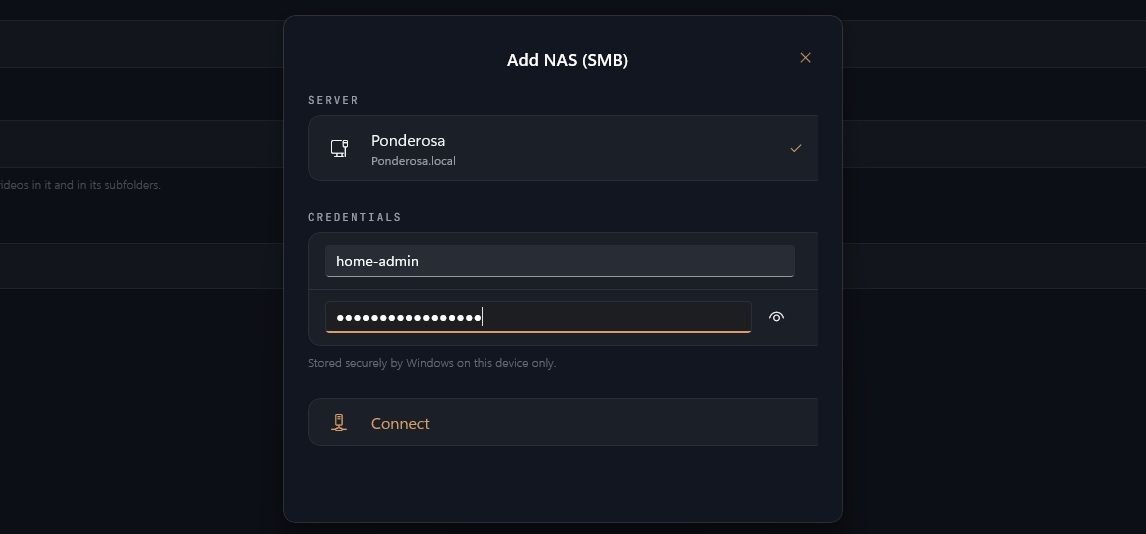
- Select Add NAS (SMB), your NAS should listed
- Tap to select, enter your NAS username and password, then hit connect underneath
- Select to Browse Folders
- Type in the name of your shared folder (most likely this will be Video) and then open shares
- Select the folder you wish to store your rides in
- Tap to confirm and add the folder
Downloading directly to your NAS drive:
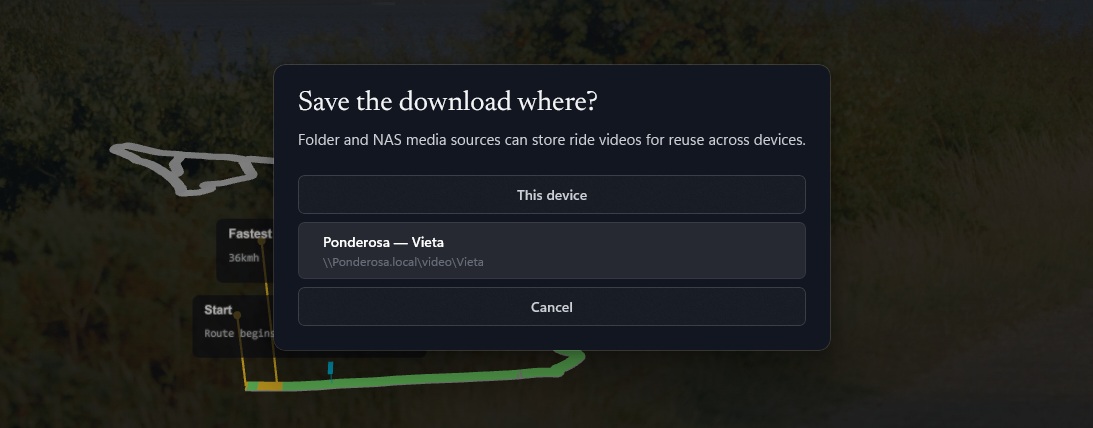
When downloading a ride video, Vieta will give you the option to download to the device's hard drive or directly to your NAS drive. To download a ride to your NAS drive:
- On the ride page and select the download icon
- Select your download quality preference
- Choose to download to your NAS (listed by name)